Posts

board2board - collaborative whiteboard using object detection
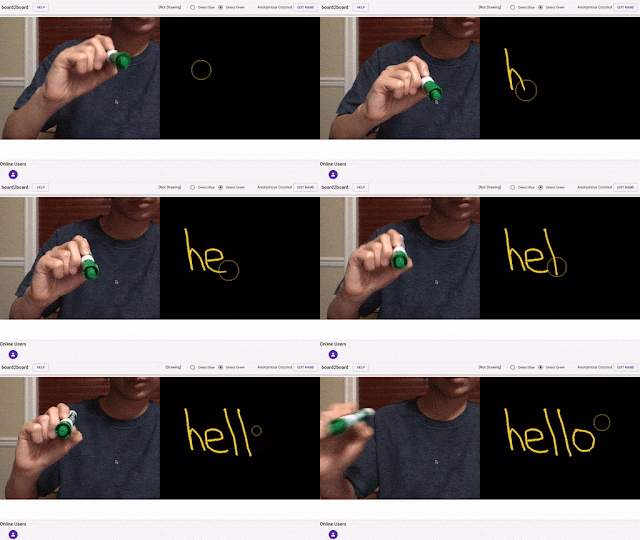
Image
board2board Our app board2board allows multiple users to collaboratively edit a board using a colored object. Previous projects in this area have forced users to draw on their trackpad or switch to a tablet to draw. Our app differs from previous work by using the webcam on a computer to detect the motion of a colored object. We allow users to communicate with one another remotely while still retaining the dexterity of drawing by hand. Features Since users’ background environments may vary greatly, we have given the option of choosing different colors to detect. Our currently supported colors are blue and green as we have found these to deliver the best results but we plan to extend the color spectrum to any color. We allow users to draw disconnected lines by having the spacebar toggle whether the marker is drawing or not. We also allow users to clear the board using the key “c”. Users can collaboratively edit the board by visiting the same link. In the fu...

Q Learning Explained with Example Code

Image
Intro to Reinforcement Learning and Q Learning Q Learning is a off-policy TD reinforcement learning algorithm. Reinforcement learning consists of an agent, an environment, and a reward system. The agent performs an action in its current environment and receives a reward for it. The goal of the agent is to maximize the expected cumulative reward. We can see this visualized in an agent-environment loop depicted below. Source: https://devblogs.nvidia.com/train-reinforcement-learning-agents-openai-gym/ Q learning is a type of TD, or Temporal Difference learning, algorithm. This means that our algorithm learns at every time step (loop in the above diagram) by remembering the best possible actions for each state and action. In fact, the Q in Q learning is a function that takes in a state “s” and an action “a” and returns the expected reward for the given inputs. Q learning seeks to approximate the optimal action-value function Q*. Another important detail to note abo...

Intro and Raspberry Pi Setup

Image
Greetings! I will be using this blog to keep track of all of the interesting things that I am working on. I recently acquired a Raspberry Pi. I will show an overview of how to set it up, as well as a few details that I found useful that other instructional resources online did not include. I will also show how to setup the 7" touchscreen, install a touchscreen keyboard, and how to take screenshots. The model I have is a Raspberry Pi 3 Model B V1.2. Raspberry Pi Setup: Step 1: Install the appropriate software on the SD card Connect your mini SD card to your computer. You may need an adapter. Visit this  website and select the NOOBS (New Out Of the Box Software). Then, download the ZIP file of NOOBS, not NOOBS Lite. Unzip the file and move its contents onto the SD card. Eject the SD card from your computer and insert it into the Raspberry Pi. Step 2: First time setup Here is the function of all the different parts of the Raspberry Pi: Source Plug the Pi into...